
*This post may contain affiliate links. As an Amazon Associate we earn from qualifying purchases.
If you’re considering purchasing a Nintendo Switch Lite you will probably want to know as much about them as possible before you make the purchase. One of the biggest questions many people ask is about the memory of the devices.
The one thing that everyone wants to be careful of is knowing exactly how much memory these devices have. This is because you will need to have a game downloaded if you do not want to carry that specific game cartridge with you and you do not want to be limited on memory.
The Nintendo Switch Lite only comes with 32 GB of internal storage which means your space for downloading or saving games is under 16GB even with a new console. If you ever plan on downloading more than a couple of games to your Switch Lite then you will absolutely want to get a memory card.
Many of the most popular games that you will download for your Switch Lite will take 5-10GB of space. So if you plan on downloading more than just 1 or 2 games then you will want to get an SD card for your Switch Lite.
Since the Switch Lite is designed as a portable gaming console it is super useful to not have to carry any game cartridges with you while you are on the go as well. And so Nintendo made it so that you can download virtually every game from the eShop that you can buy in stores.
And then you can just download those games straight to your console!
Never again do you have to worry about losing those tiny little cartridges as all of your games are loaded and ready to play right on your Switch Lite. Of course to have as much memory as you will need to download all of those games you will need to purchase an SD memory card for your Switch Lite.
So although you do not NEED to have an SD card for your Switch Lite I really believe that they are worth getting (and I have one for my Switch console as well). The Switch, Switch Lite, and Switch OLED all have the needed minimum storage space that you will need to download a few games, make a system update, download your game data, hold your save data, etc. but if you want more than that you will want an SD card to expand your storage.
Getting a Switch SD card won’t slow down the transfer speeds of the games or how fast they load either. As long as you get an SD card that is made by a reliable company then it will work just like the internal storage option.
If you plan on downloading more than just a couple of digital games for your Switch Lite you will want to get an SD card to increase your Switch’s storage.
Want to take your Nintendo Switch to the next level? Then check out this Nintendo Switch accessory bundle by clicking here.

Do you love your Switch but want to stand out from everyone else with the same model? Then look no further than this custom Joy-Con grip.
This Joy-Con grip will make your Switch console look amazing and you can even choose the one that fits your style the best!
Where is the MicroSD Slot On The Nintendo Switch Lite?
If you decided that you want or need the extra storage so you can download games from the Nintendo eShop or hold all of the best Nintendo Switch games without needing the cartridges you will want to know where the MicroSD card slot is at.
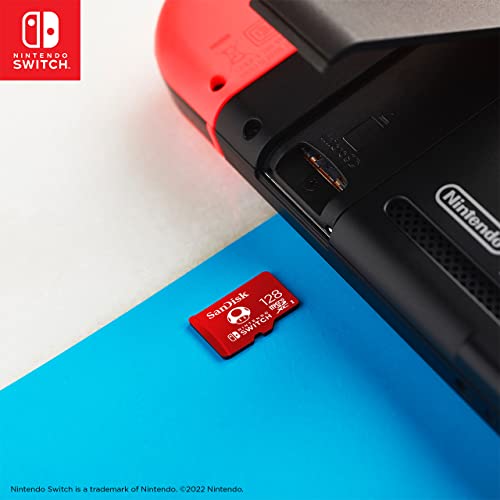
On the Switch Lite, the SD card slot is behind the kickstand. Just pull up the kickstand, push the SD card down into the slot until you hear or feel it click into place, and you are ready to start saving games.
You don’t have to fully turn off the Switch Lite console or do anything special with the system settings when putting an SD card into your console. I would recommend putting your console into sleep mode using the power button before removing or placing an SD card in the slot but it doesn’t have to be done this way.
The way the Switch Lite is designed you don’t have to do anything special with the data management or have to move data around on your own. The Switch Lite will automatically save the downloaded games or files to your SD card as needed.
What Is The Best Memory Card For The Nintendo Switch Lite?
Because there are many different micro SD cards that you can purchase for the Nintendo Switch Lite you may be confused about which one you should spend your money on. If you have not done much looking you will soon find out that there are various brands as well as various storage capacities available.
This is where many people get overwhelmed when they see all the different brands as well as the different prices. Some people prefer to purchase the cheapest memory card while others prefer the most expensive.
Some people think spending more money on a memory card will make it last longer or be better in the long run. Although this is partially true, it is not always true, and you will want to be cautious of overpriced items.
If you are looking to purchase a memory card for your Nintendo Switch Lite you will probably want something that has high storage capacity and is not the most expensive but also not the cheapest. Having a memory card that is in the middle of the road is normally the best way to go as you get the high storage capacity without breaking the bank.
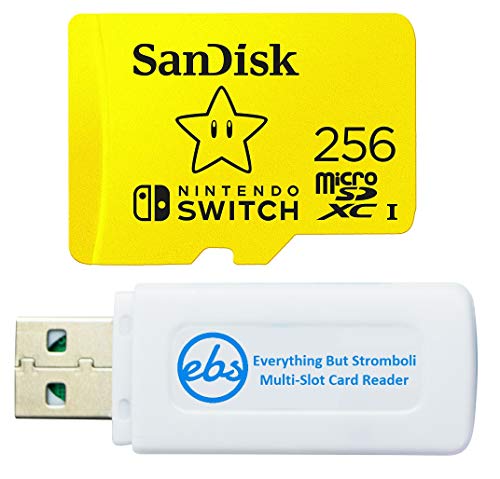
Because most people will not use any more than 256 GB of storage for their Nintendo Switch Lite, you will want to purchase a memory card that has at least that amount of storage. The best memory card for your Nintendo Switch Lite is the SanDisk 256 GB micro SDXC card.
This memory card not only has a good amount of storage, but it is also not extremely expensive. It has incredible speeds and is specifically licensed for the Nintendo Switch and Nintendo Switch Lite systems.
This allows you to know that this card will work with your device without any issues as well as it comes with a lifetime limited warranty. This memory card will allow you to store your download games, screenshots, and video captures, and save games all in one place.
How Many Games Can A Nintendo Switch Lite Hold?
Another question that many people often ask is how many games a Nintendo Switch Lite can hold. Although this is a very good question, it really depends upon what games you are downloading as well as what memory card you have on your device.
A Switch Lite that does not have an SD card can hold between 2-5 games (depending on how large the games are). Most full-length games are 5-7GB while shorter cheap games will only be a few GB each.
So with around 16GB of storage (after the Switch Lite’s software is accounted for) you will be able to download 2 or 3 full-length games and 5-7 shorter less memory-intensive games.
However, if you have a large enough memory card there is no limit to how many games you can have on your specific device. As of right now the person that has the most games on their Nintendo Switch device has just over 2000 games downloaded.
This is why many people will purchase a memory card for their Nintendo device based on how many games they want to download. If you only have a couple of games and you do not plan on downloading very many, you may not even need a memory card for your device.
If you are an avid gamer and you like to switch between a bunch of different games, you will definitely want a memory card. Based upon how many games you want to have downloaded though will decide how big of a memory card you need to purchase.
Is 32GB Enough Storage For The Switch Lite?
Because the Nintendo Switch Lite only comes with 32GB of storage, some people wonder if they will need to spend additional money on a memory card or if that will be enough. Although the 32GB of storage will be enough when you first start off with the Nintendo Switch Lite, you may find yourself wanting to purchase a memory card the more you play.
The 32 GB of storage keeps the Nintendo Switch Lite running smoothly as well as gives the users plenty of space to download a few games and other items on their device without making it run out of space. However, if you intend to download more than just a couple of games you will definitely need to get a memory card to expand the 32GB that the Switch Lite comes with.
The Nintendo Switch Lite does not come with a free memory card though as Nintendo wants you to purchase that separately. This not only helps Nintendo make extra money by not including more memory, but it will allow you to choose your memory card based on your specific storage needs.
If your Nintendo Switch Lite came with a 500 GB memory card, you may never fill it up, and if it came with an 8 GB memory card you may feel like they do not care. Although it seems kind of cheap for the Nintendo devices to not come with a memory card, it is really the best option for the user.
Can You Add Storage To The Switch Lite?
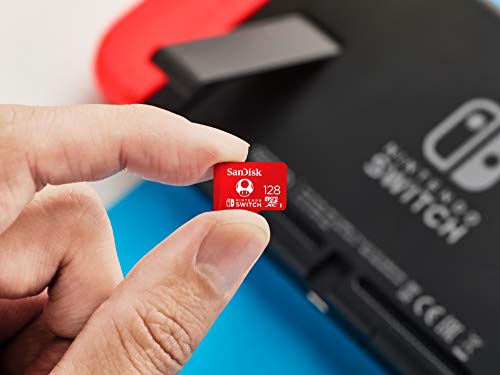
You can add storage to the Switch Lite as you need to. The device comes with 32GB of internal storage, which may not be enough for some gamers who want to download and store a large number of games and other content. To add more storage, you can purchase a microSD card.
To add a microSD card to the Switch Lite, you will need to open the back of the device (pop up the kickstand) and insert the card into the designated slot. Once the card is inserted, you can access it from the system settings menu, where you can format the card and assign it as your default storage for games and other content.
Does An SD Card Give A Switch More Storage?
Using an SD card is an excellent way to have almost unlimited space to download games onto your Switch console.
The Switch comes with 32GB of internal storage, which can quickly fill up if you have a lot of games and other media. An SD card can help to alleviate this issue by providing additional storage space for your files. The Switch supports SD cards with capacities of up to 2TB, so you can easily add a large amount of extra storage if needed.
Using an SD card on your Switch can also improve its performance. When the internal storage is full, the Switch may start to run slower and experience lag during gameplay.
By moving some of your games and other files to an SD card, you can free up space on the internal storage and improve the overall performance of the Switch.
How Many Games Can 128Gb/256GB Hold On The Switch?
The amount of games that a 128GB or 256GB microSD card can hold on the Nintendo Switch largely depends on the size of the games and the number of saved files associated with them.
On average, a 128GB microSD card can hold approximately 20-25 Switch games, while a 256GB microSD card can hold around 40-50 games.
However, it is important to note that some larger games, such as The Legend of Zelda: Breath of the Wild, can take up nearly 25GB of space on their own. Additionally, save files for each game can take up additional space, so it is important to factor that into the overall capacity of the microSD card.
Conclusion
Now that you know about the space of the Nintendo Switch Lite, you can decide for yourself if you need a microSD card for it or not. Although many people would consider a memory card a need, some people do not play that many games or prefer physical games over digitally downloaded ones.
If you prefer to have physical games over downloaded games on your Nintendo Switch Lite, you will find out that you will not need any more than the 32 GB of storage that comes in your device. It all depends on what games you want to play, and how many games you want to download.
There are many different memory cards available for your Nintendo Switch Lite, but the best well-rounded memory card can be found by clicking here. Having a memory card in your device is always a good idea as you may go through 32GB of storage far sooner than you might realize.
Owning a Nintendo Switch Lite is amazing and once you own one you will never want to own anything else. This is because these devices are unlike any other gaming device on the market today.
If you do not own a Nintendo Switch Lite, but feel you are ready to make that purchase you can find different colors and styles of the device by clicking here.