
*This post may contain affiliate links. As an Amazon Associate we earn from qualifying purchases.
Although many people have the Sega Genesis, they are unsure if it supports S-Video, or not. Quite a few people prefer S-Video because of the better quality of it, but it does not come on the Sega Genesis from the factory.
So does the Sega Genesis Support S-Video?
Although the Sega Genesis does not come with the S-Video attachment, it does support it, so it can be added to the console if you wanted to do so.
If you want to add the S-Video Input into your console, you will want to keep reading as we will go into depth of how to add this to your console.
Are you a huge Sega fan? Then you have to check out the amazing Sonic and Sega gear that you can get. Whether you want a Sonic wallet, a Sega sweatshirt, or a classic hat there are plenty of choices to choose from. You can find them all by clicking here.
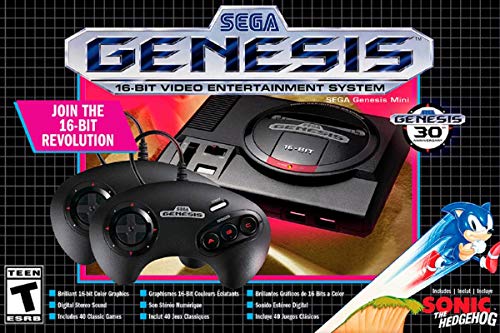
If you love Sega then you will want to check out this Sega Genesis Mini console. It comes with two controllers and even comes preloaded with 42 Games!
Enjoy these classic Sega Genesis games without having to purchase a single game cartridge!
How to add S-Video output to a Sega Genesis?
It’s not rocket science to add S-video Output to A Sega Genesis. S-video is an attempt to manage the video output issue by keeping luminance and chrominance electrically separate. As we can see from the console that the S-video passes Y & C from the source device to the TV on their wires.
It also avoids most of the image issues which are already inherent to composite video. To fix this issue and add S-video output to a Sega Genesis, you will first need a TV with an s-video input.
It will be pretty hard to play a Sega Genesis with a S-Video output, if you do not have a tv with one to attach it to. If your tv only has HDMI and not S-Video, you can purchase an adapter as well.
These adapters are easy to use, and are made specifically for a new tv to the Sega game system.
Although there are some people who would take apart their entire Sega Genesis and rewire the entire motherboard to make this mod, we do not recommend doing that at all! Instead we recommend using this simple little trick that we have found works great for everyone.
The best part is that there is no disassembling of the system required, and there is no possible way for you to mess us your game system on accident. So here it is, the best way to add S-Video to your Sega Genesis.
While some people may say that that is considered cheating, we believe that if the technology is available for literally just a couple of dollars, why would you spend hours trying to mod your Genesis and possible break it when you can just plug in the cable and get the exact same result.
Why do people prefer S-Video?
A lot of people prefer the S-Video over the composite, because of the better quality it offered. The composite has always had issues with connectability, and working properly with the gaming console.
A lot of people think there is some lag between the console and what is shown on the tv when composite is being used. This as well as other reasons is why people prefer the S-Video over the composite adapter.
Here is a video that explains the difference between S-Video and composite, and why S-Video is so much better.
What upgrades are available for my Sega Genesis?
There has been such a massive number of significant upgrades that were made available for the Sega Genesis / Mega Drive. At the beginning a lot of the upgrades were not that good, but as time went on, the upgrades definitely became a lot better!
Here are some of the significant updates that we can suggest to you to get for your Sega Genesis Console.
The Genesis system gives you sound quality RGB video output; however, they are plagued with jail bars. If you are searching for the best quality, you can plan on making at least one hardware adjustment.
Another thing that we would like to mention here is that Genesis owners can quickly get a video improvement if they want. This can be done by lifting the subcarrier pin on the VDP. This process can disable composite video, and incredibly lessens the jail bars.
The sound improvement is not a big trick to do, although you can still face some interruption. However, you’ll have the option to use a Genesis style DIN, and there’s a definite improvement.
The Japanese console boxes have the most specific problem with jail bars. If we compare it to the US console box, The Japanese model has major quality issues as well as RGB issues.
Here is a video of someone with a fully modded Sega Genesis showing what Mods they have on their console, and which ones are good to have and which ones do not really matter for everyday gameplay.
Sega Genesis History:
Do you remember the chime Sega alwasy had when you turned it on? Many of us remember it from our childhood, or our teen years. The Sega Genesis has some of the best games of all time. It is going along with the excellent opening of this incredible gameplay, Sonic the Hedgehog games on the Sega Genesis.
When you look back at the best games of all time, Sega has definitely marked its name in the tech market. The Sega Genesis and the Super Nintendo Entertainment System were the best gaming systems that were ever made!
The Sega Genesis has a jet black console box, 68000 CPU for the beautiful 16 bit system.. It was a beautiful machine that supported almost 1,000 titles from Sega, as well as other famous developers like EA and Rare.
Conclusion
When we talk to a lot of the gamers today, they only remember as far back as the playstation 2, Gamecube, and original XBox. The sad part is that the gaming systems actually were the best.
Even though these games systems are good for their time, they are not advanced like the Sega Genesis or the Super Nintendo.
Although it is easy for us to forget about the older systems, it is something that helped us change how games were played and are even being played today. After the success of the Sega Genesis, many other game consoles came into existence.
Today you will find that people still remember the original sound of Sega when you would first turn it on. Being such a memorable game system and having such amazing games are two things that make the Sega an amazing game system of the past.
Although the Sega Genesis was one of the last consoles produced by Sega, it was definitely the best console they had ever made. The Genesis had amazing graphics, and even though it has RGB output a lot of people even upgraded to the S-Video for even better graphics.
If there was one game system that a lot of people still play and collect games for today, it is definitely the Sega genesis. There are collectors and people all over the world that are looking for this console, and many others who play it on a daily basis.
We hope you have found your answer to getting the S-Video on your Sega Genesis, as well as learned some other things about the Genesis you might not have known.