
*This post may contain affiliate links. As an Amazon Associate we earn from qualifying purchases.
Have you ever tried to log into your PlayStation (PS4 or PS5) account and it said that your email or password was incorrect? Maybe you got an email that said someone requested to change your email address and you know it wasn’t you.
If you have experienced either of these issues you are likely wondering what you need to do next!
Well, in this article we will discuss how to fix this problem so you can get access to your Playstation account again and not lose anything but a little bit of time.
So how do you fix a PlayStation account that has been hacked and the email changed?
If your PSN account has been hacked, or you think someone may be trying to hack your account you will want to contact Sony immediately. They will be able to see the hacking attempt and shut down the hacker.
They will also be able to help you change your email or password to secure your account again as well as fix any payment problems that the hacker may have created.
If you consistently have issues with your Playstation account being hacked you will want to make sure that you add 2-step verification and ensure that you aren’t giving out any personal information like your date of birth in your gamertag.
Having your account hacked can be extremely frustrating however it is relatively easy to get fixed if you notice it quickly enough. To contact Playstation’s support you can call them at: 1-800-345-7669.
You can also use their live chat or support bot to help as well (by clicking here).
It is important to catch the hackers as soon as possible so as soon as you notice that your email has been changed or your account has been hacked you should contact Playstation’s support as soon as possible.
The longer you wait the harder it can be to prove that it wasn’t you or even to try and get any money back that was spent on the account while it was hacked.
If you are unable to get a hold of Playstation support for some reason then you will want to call your bank/credit card company and put a hold on any charges on the card that you have linked to your Playstation account.
This will make sure that the hackers at least can’t spend a bunch of money on your credit/debit cards as well.
If you want to know more about PlayStation and how to have them help you if you have been hacked, you will want to keep reading.
You can also watch the video below which will tell you what to do if your PlayStation account has been hacked.
If you love PlayStation you need to check out this amazing game room light decor. It looks just like the buttons on the PlayStation controller and the light reacts to the music that you are playing as well! You can check it out by clicking here.
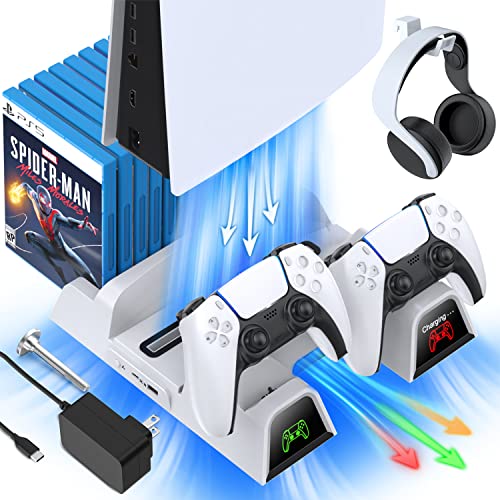
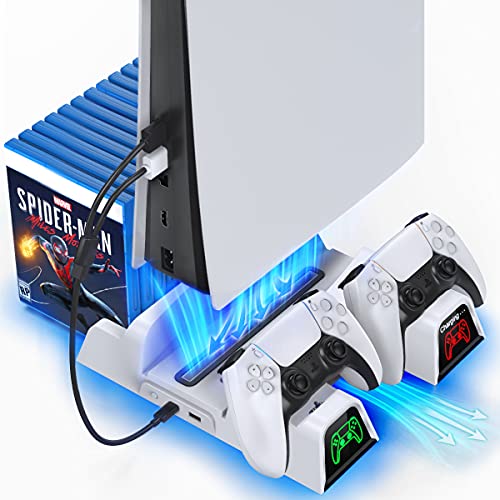
If you have a PlayStation console you should also have one of these stands. It makes it incredibly easy to organize your console and games as well as charge your controllers at the same time.
Plus it has a cooling fan to make sure your console doesn’t overheat when you have your weekend gaming marathons!
Why do people hack PlayStation accounts?
If your Playstation account has been hacked your first thought will likely be how to recover the account (which I covered in the section above). However, your second thought is likely why?
Why would hackers want to gain access to your account?
Do they just want to play games or what is the real reason behind the hacking process?
Hacking Playstation accounts is typically done for a couple of different reasons.
The first reason why a Playstation account will be hacked is so that the hacker can spam in chat using the hacked account to try and get people to leave the platform and give them money using another method. The second reason that hackers will try to get into an account is so that they can sell access to it fraudulently.
Although there are many other possible reasons why someone might hack your Playstation account, those are the most likely reasons.
If the hacker is able to convince people in chat or even your friends on the Playstation through direct message to buy a scammy product and they can then steal their credit card information then a single account hack could be very profitable for them.
Even getting access to a single credit card can easily turn into multiple hundreds of dollars in fraudulent purchases on that card and that is a lot, especially considering that most scammers live overseas where the cost of living is only a few dollars a day.
Selling access to the account can also be very lucrative for them.
They can claim that they no longer need the account or want it and try and sell it with all of your games and content still on it which makes it a pretty attractive offer for the buyer.
The scammer/hacker will then vanish with the money and when you get the account back the buyer will lose all of their money (since the account was stolen in the first place).
With the growing advancements in technology, almost every industry (be it industrial or video gaming) has seen a massive change of mostly positive growth over the past few decades. Technology has drastically changed the ways that almost all industries and businesses work by bringing in new developments and machines that not only enhance the work quality but are also much more convenient.
However with these massive changes in technology has also come an increase in scammers/hackers that cost people their money.
While it used to be that scammers would call people and try to get them to give them money over the phone, they are now able to hack and steal accounts and resell them or use them for other methods to steal from other people as well.
Although video game technology has advanced at a rapid pace the security of accounts and even banking information quite simply has not kept up. It has become easier and easier for hackers to access accounts using fraudulent methods simply because there are more and more people online which means it’s easier to find people to scam.
Often the end buyer or even small businesses that sell goods online are the ones who lose money because of scammers while the account holders are made whole and it doesn’t seem like a big deal to them. So accounts are left with easily compromised passwords and companies don’t make hacking into their systems impossible since it doesn’t affect them very much.
That isn’t to say that Playstation does a bad job in regard to security but since neither Playstation or the account holder is typically at risk of losing money in the event of a hack they are far less worried about it than those people who will lose money because of the hack.
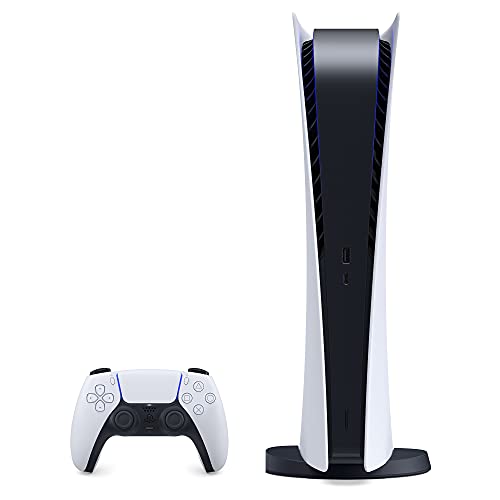
PlayStation Network account hacked
With the growing popularity and a large number of online users involved in the world of virtual video gaming, hacking of accounts and other problems caused by online hackers and scammers is a common problems faced by many individuals.
Although PlayStation policies strictly prohibit any such behavior sometimes it still happens. When it does, PlayStation immediately bans the account of the user who is hacking into the system.
Usually, the accounts are hacked and the registered email address is changed which causes further complications and can sometimes make situations difficult to handle if you have no idea what you should do about it.
There are ways in which you can secure your account and also steps that you should follow in case your account is hacked or the email address is changed on your PSN account.

What to do if your PlayStation Network account is hacked?
Generally hacked accounts go unnoticed until you see some unidentified transactions using your account for payment or downloaded games that you did not choose. All of these as well as many other things indicate that you have a hacked account.
You might also get an email from Playstation that tells you that your password or email has been changed.
The first thing that should be done is to report the problem to Sony as soon as possible so that further complications can be avoided. Sony has gone to a considerable length since the PlayStation network was compromised and will take all of the necessary steps to combat a hacker.
Warning signs of a hacked PSN account
As mentioned earlier, unidentified transactions are the first sign of a hacked account. Receiving emails from the PlayStation store for unidentified purchases or notification for an email address change as most of the hackers change the registered email address in order to gain full control of the account.
Since you can not log into your account, all the wallet or credit card details that are saved in your account can be easily misused with no way to remove the important details from your account. Since the Sony help number cannot be used twenty-four hours a day, you might need to wait for a few hours to speak to an associate.
Please do not worry though, as they will help you fix the issue as soon as possible.
How to handle bank account and credit card details on a hacked account
The first thing to avoid any further transactions should be calling your bank or credit card company and requesting to block the particular credit card which you have saved in your PlayStation Network account.
If you do this, you can ensure that no further unwanted transactions take place and your cash can not be misused.
Although you are covered by most banks and credit cards in regard to fraud it can still be a massive hassle so stopping it as soon as you notice the issue is best.
Contact Sony for help
It is important that you inform Sony about the issue and you can contact them in three ways.
- You can write an email at the given PlayStation email address, but the process is a little time consuming and not recommended as you would prefer quick actions regarding this problem.
- You can tweet Sony on their registered PlayStation page and talk to an expert with the help of tweets or a live chat where you can explain the issue thoroughly.
- You can call Sony’s helpline number (1-800-345-7669) which is the fastest way and talk about the steps that you need to take.
Refund and help
In case of any unidentified purchases that you want to dispute, you can talk to the support team at Sony and they can help you with answering your questions and processing a refund for the items that were purchased during the hack.
Can you change your Playstation online ID?
Before changing your online ID, there are some things to consider:
- PS4 games may experience issues after an online ID change.
- A list of PS4 games tested with the online ID change feature can be found on the website.
- PS3, PS Vita and PS/TV games and apps do not support the online ID change feature.
- If you experience technical issues, you can revert back to your original online ID for free. Reverting to your previous online ID should resolve most issues caused by the ID change.
- Online IDs can’t be changed for child accounts.
- Some games which have no known issues identified on the list may still experience issues if you change your online ID.
You can change your online ID. You will want to be cautious as you may experience issues with some games such as lost game progress after you change your online ID
If you are experiencing issues after an online ID change, please contact the customer support team to change back to your previous online ID.
Changing back to your previous online ID is free and should resolve most issues. However, this may not fix all issues (for example, you may not recover lost content, progress, and functionality).
We recommend that if you want to change back to a previous online ID, do so as soon as possible, because it may affect content, game progress, and functionality associated with your new online ID.
How To Change Your Email For A Playstation Account
If your email address has been hacked that is connected with your PSN account then you should change it to a different email address. But how exactly can you change your PSN email address?
To change your PSN account email all you need to do is:
- Sign in to your account management tab via a regular web browser (not on your Playstation).
- You will then click on the text that says Security on the sidebar.
- Next to where it says Sign-In ID you will click on the edit link.
- You will then enter the email address that you want your PSN account to have.
- Then just click the Save button.
- Playstation will send you a verification email to the new email address that you just added. Just click the link that says “verify” and your PSN account email is now changed.
Playstation makes changing the Sign-In ID (your email address) extremely easy to change. As long as you know the original login information and have access to a web browser via a computer or mobile device, then you can easily change the email address that is connected to your Playstation account.
How Can I Recover My PSN Account Without Email?
If you’re a PlayStation Network user, you might have been recently hacked or your account might have been compromised. If you’ve lost access to your account, or can’t remember your email address, don’t worry.
You can recover a PSN account without an email, but you will need to go onto the Playstation.com website and fill out a recovery form. This way, your PSN account can be recovered, and you will not lose any of your game data.
There are many reasons why you may need to recover your PSN account. One of the most common reasons for this is not having access to the correct email address and password.
You will not be able to log in to your PSN account without these. However, the good news is that you can recover your PSN account without knowing your email.
You can recover your PSN account, but you will need to recover your email address to do this. You will not be able to log in to your PSN account without the correct email address associated with the account.
You can set up a new PSN account, but your old data will be encrypted to the old account, so you will be starting from scratch if you do this.
This is incredibly inconvenient if you have been using your PSN account for a long time. All your progress on games will be lost if you create a new account.
One way to recover your email is to restart your PlayStation and click on the ‘sign in’ option after clicking on ‘start’. Sometimes, your email address will be automatically populated in the ‘username’ box.
This happens because many online devices will save your data for convenience purposes. However, if you have restarted your PlayStation and your email address has not been saved, then you will need to recover it.
Can you recover a PSN account without a password?
If you have your PSN account email address but you cannot remember your password, you may be wondering what your next steps are. Maybe you want to know if you’re locked out of your account forever.
You can recover your PSN account without a password by simply resetting your password. You can reset your password if you have an email address or phone number on file for your account.
The best way to do this is to go into the ‘sign-in’ section on your PlayStation device. Use the email address associated with the account you need to recover and click on ‘trouble signing in’. You will then be sent a link to your email address where you can reset your password.
This email will be sent to you within 24 hours of your request. If you have done this, and the email has not been delivered after 24 hours have passed, then you can follow a link that will bring you to the playstation.com website. Scroll down to the sub-heading ‘Reset your PSN password’ and follow the instructions on what to do.
After receiving your email, you can then create a new password which can be used on the sign-in section on your PlayStation device. Make sure you write this new password down somewhere so that you do not forget it. Once you have signed back into your PSN account on your gaming device, your data should be saved for future sign-in attempts.
Do lost PSN accounts get deleted?
Sony does usually delete PSN accounts if they have been inactive for too long. With that, it has caused some backlash against the company and so they have limited how often they do this. However, Sony can and will delete any PSN account that goes against company regulations.
Lost PSN accounts do get deleted, but only after a 24-month period without activity. So if your account gets lost and you do not have your password it will eventually get deleted.
If this is the case, then Sony will not provide a refund of any unused wallet funds tied to the account, unless they are required to do so by law.
When this happens, you will not be able to create a new PSN account under that same email address. This is because your data will still be stored in their database, even though your PSN account has been deleted. You will need to set up a new PSN account using a different email address.
When recovering any aspect of your PSN account, be sure to follow the steps listed above. These are the safest and most reliable ways of recovering your account data.
It is also recommended to keep a separate note of your account data, maybe in a locked app on your phone, so that you can access it should you forget.
For any other issues, be sure to speak to Playstation directly. They can help to solve any of your questions.
What is a PlayStation and PlayStation Network?
PlayStation is a video gaming brand that in total consists of five home video consoles, an online server, two handheld gaming devices, media center, a line of control, multiple numbers of magazines as well as a phone.
It is a brand owned and produced by Sony Interactive Entertainment which made its first gaming console in 1994. It was first launched in Japan and then eventually all around the world, and became known as the PS1 or PlayStation One.
The fastest-selling unit to date was the PlayStation 2. It transformed the gaming world for users all around the world and was immensely popular amongst all video gaming enthusiasts. Later came the release of the PlayStation 3 and then the PlayStation 4 & 5.
All of these consoles were extremely popular and fun for people of all ages to play. When the release of online gaming became popular, every new PlayStation overtook the previous one in specs and just overall have been a better console as tech has advanced.
What is PlayStation Plus?
PlayStation Plus is an online service that the PlayStation Network put out that has over a hundred and ten million active registered users all around the world. The best part is that numbers are increasing every single year.
It offers a virtual online marketplace (the PlayStation store) that lets the users purchase and download various different types of games and other forms of multimedia.
To have access to extra benefits and use additional services, the users can also buy subscriptions like PlayStation Plus that help them with many extra features including free games.

What is PlayStation mobile?
PlayStation mobile is also a software framework that runs all the PlayStation services on mobile, which brings you the benefit of accessibility as you can enjoy a good round of games anywhere without the need to set up the complete PlayStation console.
All that you need to do is to log in with your PlayStation Network account and enjoy all the benefits of a regular PlayStation video gaming console on your mobile phone.
Conclusion
Although no one likes or wants their account to be hacked, in today’s world, it seems like that is something that is always happening.
If it does happen today, companies have procedures in place to help you get the account back and you do not have to pay for any of the items that were purchased on your account if you did not purchase them.
Sony is always available to help and is willing to help you in any way that you need.