
*This post may contain affiliate links. As an Amazon Associate we earn from qualifying purchases.
As a self-proclaimed expert gamer and lifelong Nintendo fan, I’m here to share my knowledge and experiences with playing on the Switch.
To those of you who aren’t familiar with the Switch, it’s a hybrid video game console from Nintendo that allows you to play games both at home on your TV and on the go using the handheld console. It’s been a game-changer for me, and I’ve been hooked since day one.
I’ll never forget the first time I laid my hands on the Switch. It was love at first swipe. I mean, who wouldn’t be smitten with a Nintendo gaming console that lets you play all your favorite games both at home and on the go?
I remember taking it on a road trip and playing Mario Kart 8 Deluxe with my friends, laughing and shouting at each other the whole way. Good times.
But I digress.
Now, the purpose of this article. Well, I’ve been getting a lot of questions from friends and acquaintances about whether you can play Switch games on a PC.
Yes, it is possible to play Nintendo Switch games on a PC. This can be achieved through the use of emulators. However, there is no official way to play Switch games on your PC since Nintendo only makes their games for Nintendo consoles.
When using emulators or other methods to play Switch games on your PC the performance and graphics quality can be quite poor and there may be limitations or compatibility issues with certain Nintendo games.
Additionally, playing Switch games on PC may not provide the same level of experience as playing on the actual console.
So although you can play Switch games on your PC using those sorts of methods it is really not something I would recommend. The poor graphics combined with the legal issues of downloading or playing Nintendo’s games on your PC just doesn’t make it worthwhile.
Understanding Nintendo Switch Games
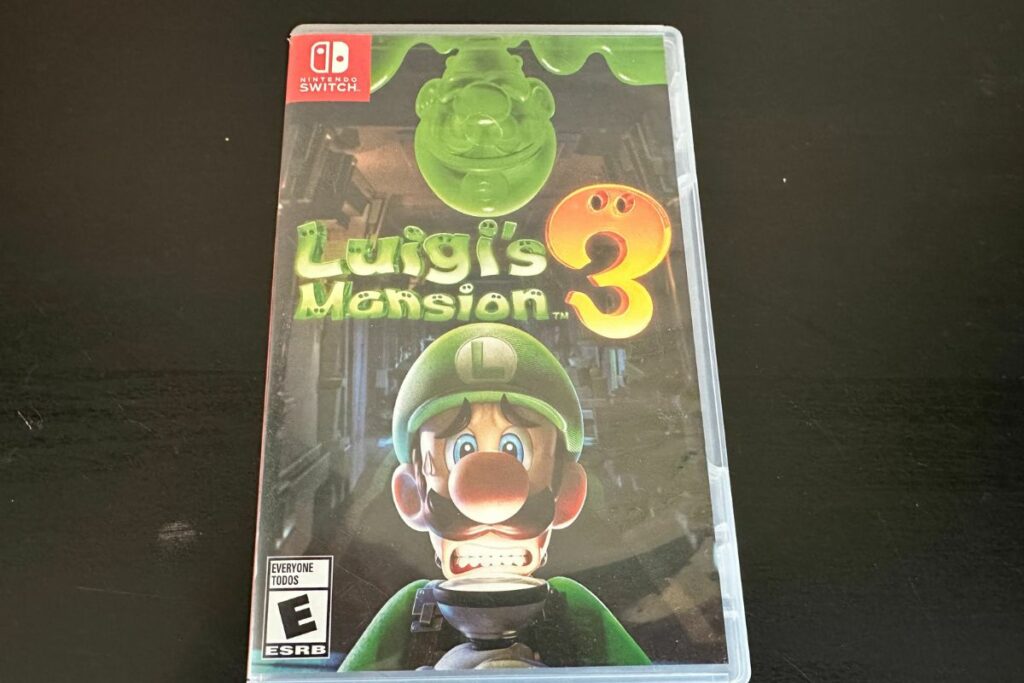
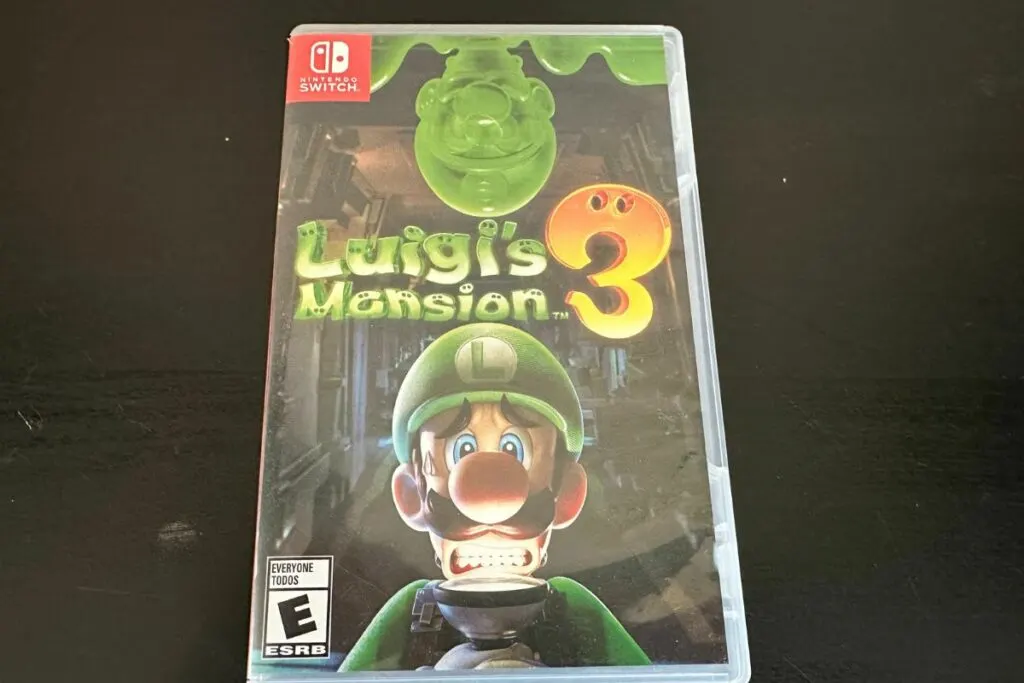
Okay, so you want to know more about Switch games? Well, buckle up, buttercup, because I’m about to take you on a wild ride through the world of Nintendo games.
First things first, let’s talk about the types of Nintendo games available on the Switch. From action-packed adventures to cute and quirky puzzle games, the Switch has something for everyone.
I mean, you’ve got Nintendo games like The Legend of Zelda: Breath of the Wild, which is an epic open-world adventure that’ll take you on a journey through a vast and beautiful world. And then you’ve got games like Animal Crossing: New Horizons, which is a delightful and relaxing simulation game that’s perfect for unwinding after a long day.
Now, onto the exclusive features of Nintendo games. This is where things get really interesting. One of my favorite things about Switch games is that they often have exclusive features and capabilities from Nintendo that you can’t get anywhere else.
For example, the Joy-Con controllers that come with the Switch can be used in a variety of unique ways to enhance gameplay. And then you’ve got games like Mario Kart 8 Deluxe, which allows you to play with up to 12 players online, making for some wild and wacky races.
Let me tell you a little story about my experiences with Mario Kart 8 Deluxe. I was playing Nintendo with some friends one night and we were all having a blast racing each other. But then, things took a turn for the chaotic when one of my friends decided to use a blue shell.
We were all laughing and shouting as the blue shell zoomed toward the leader, taking them out and sending them flying. Good times.
So, to recap, the Switch has a great library of games that offer unique and exclusive features that you can’t get anywhere else. And that’s just the tip of the Nintendo iceberg.
Trust me, once you start playing games on the Switch, you won’t want to stop.
But just remember, gaming on the Switch isn’t just about playing games. It’s about creating memories and having fun with friends and family.
Whether you’re on a road trip, hanging out at home, or just looking for something to do, the Switch is the perfect gaming companion. So, grab a Joy-Con, find a friend, and get ready for some serious fun.
Nintendo Switch Emulators for PC Games
Alright, so you want to know about playing Switch games on PC, huh? Well, I guess I can talk about that. But I have to be honest, I’m not a big fan of playing Nintendo games on anything other than the Switch.
But, hey, I’ll try to keep an open mind and give you the skinny on how to play Nintendo Switch games on PC. The main thing is you will need to download an emulator. This will allow you to not only play PC games but also Switch console games on your PC.
First of all, let’s talk about what a Nintendo Switch emulator is. Basically, it’s software that allows you to play Switch games on your PC.
It works by emulating the hardware of the Switch, which means that you can play games that were designed for the Switch on your PC.
Now, let’s talk about the legality of using Nintendo Switch emulators. It’s a bit of a gray area, to use a Switch emulator, be honest. On one hand, downloading and playing games that you don’t own is illegal. On the other hand, some people say that if you own the physical copies of the Nintendo video games that you are downloading and playing it is fine.
So, you know, proceed with caution.
Personally, I’ve never used a Nintendo Switch emulator, and I don’t really plan on it. I mean, why would I want to play games on my PC when I’ve got the real deal sitting right here next to me?
But I know some people who have used them, and from what I’ve heard, the experience can be hit or miss. Some people say that the games run great and look just as good as they do on the Switch.
Others say that the games run poorly and that there are a ton of bugs and glitches.
Let me tell you a story about my buddy who tried using a Nintendo Switch emulator. He was all excited to play some of his favorite games on his PC, but things didn’t go exactly as planned. He spent hours downloading and setting up the emulator, only to find out that the Nintendo games he wanted to play wouldn’t run properly.
He said Nintendo’s graphics were all messed up and the controls were laggy. I mean, talk about a major disappointment.
So, in conclusion, there are Nintendo Switch emulators available for PC, but it’s up to you to decide whether or not to use them. Just be aware of the potential risks and limitations that come with using an emulator.
And remember, there’s no substitute for the real thing. So, grab your Switch and let the good times roll.
Disadvantages of Playing Nintendo Switch Games on PC
Alright, let’s talk about the disadvantages of playing Switch games on PC. And trust me, there are a few things to consider before you decide to make the switch (no pun intended).
First of all, playing Switch games on PC can be more complicated and require more technical knowledge than playing on a Nintendo console. If you’re not familiar with PC gaming, then you may have trouble getting everything set up and working properly.
You’ll need to have a good understanding of how to install and use emulators, or how to use a streaming service. And let’s be real, not everyone has the time or patience for that kind of thing.
Another disadvantage to just playing on a Nintendo is that the experience of playing games on PC can be different from playing on the Switch. The Switch was designed specifically for gaming on a TV (using a Switch dock) and on the go, so it’s small and portable.
Playing games on a PC is typically a more stationary experience, and you may miss that portable aspect of your Nintendo gaming.
One thing I’ve heard about playing Switch games on PC is that the controls can be a bit clunky. Even when using a mouse and keyboard, it can be difficult to get the same level of precision and responsiveness that you would get on the Switch.
This can make the games less enjoyable and can impact your ability to play at your best.
Another issue is compatibility. Not all Switch games are compatible with PC, and even if they are, some games from Nintendo may not run well on your particular computer. This can be frustrating, especially if you’re used to playing games on the Switch without any issues.
Let me share a personal story about when I tried playing “Mario Kart 8 Deluxe” on PC using an emulator. It was a disaster. The graphics were choppy, the controls were laggy, and the whole experience was just frustrating.
It made me appreciate the smooth and seamless experience of playing on the Switch even more.
Playing Switch games on PC can also be more expensive than playing on the Switch itself. If you need to buy a new computer, or if you need to pay for a VPN service, then you’ll end up spending more money.
And let’s be real, we all have other things we could be spending our hard-earned cash on.
Finally, playing Switch games on PC can result in lower quality graphics and sound compared to the original Nintendo version. This can impact the overall gaming experience and can make the games less enjoyable.
So, to sum it up, playing Nintendo Switch games on PC can be more complicated, the experience can be different, the controls can be clunky, compatibility can be an issue, it can be more expensive, and the graphics and sound can be lower quality.
And while there are certainly some advantages to playing Nintendo Switch games on PC, there are also some significant disadvantages to consider.
The Best Games For the Nintendo Switch You Have To Play
Ah, the age-old question: What are the best Switch games? Let me tell you, as a seasoned Switch gamer, I have tried and tested many games from Nintendo in my quest for digital glory.
But fear not, I’ll share with you the creme de la creme of Switch games.
First on my list is “The Legend of Zelda: Breath of the Wild”. This Nintendo game is a masterpiece. It’s an open-world adventure that will have you exploring ancient ruins and battling epic bosses. Trust me, it’s worth losing a few hours of sleep for.
This Nintendo game is so good, it’ll make you forget what the sun looks like.
Next up, “Animal Crossing: New Horizons”. This game is the perfect escape from reality. It’s a simulation game where you create your own island paradise and interact with cute animal characters.
I have to admit, I’ve spent way too many hours fishing and catching bugs in this Nintendo game.
“Mario Kart 8 Deluxe” is another must-play. This game is pure, unadulterated fun. It’s Mario Kart, what more do I need to say?
It’s the perfect Nintendo game to play with friends and family, especially if you want to cause some friendly competition. Just remember, it’s all in good fun… or is it?
“Super Mario Odyssey” is another great game in the Mario franchise. This game takes Mario on a globe-trotting adventure to rescue Princess Peach.
It’s a classic Mario platformer with a twist. You can even control Mario’s hat, how cool is that?
Last, but certainly not least, is “Hollow Knight”. This game is a masterclass in side-scrolling action and exploration. The game’s hand-drawn art style is stunning and the soundtrack is simply mesmerizing.
I couldn’t put this game down, even if I wanted to.
So, there you have it. These are the games that have earned a place in my heart and on my Switch home screen. These games for your Nintendo will provide hours of entertainment and, most importantly, bragging rights.
So, grab a Joy-Con controller and get gaming, folks!
Conclusion: Play Switch Games On Your Nintendo Or Using A Switch Emulator
So, what’s the final verdict? Well, it all depends on your personal preferences and what kind of gaming experience you’re looking for. If you’re a casual gamer who just wants to play their favorite games on a PC screen, then emulators might work out just fine.
But if you’re a hardcore gamer who demands the best performance and graphics from their games, then you’ll probably want to stick with playing on the Switch.
Personally, I’ll always prefer playing on my Nintendo Switch. There’s just something special about having the console in my hands, feeling the rumble of the Joy-Cons, and experiencing the games the way they were meant to be played.
Plus, let’s be real, I just can’t give up that sweet, sweet portability.
At the end of the day, it’s all about what you’re looking for in your gaming experience. Whether it’s playing on the Nintendo Switch or on PC, as long as you’re having fun, that’s all that matters.
So, there you have it folks. Whether you’re a die-hard Nintendo Switch fan like myself or just curious about playing games on PC, I hope this article has given you some valuable information and a few good laughs.
Now, if you’ll excuse me, I’m going to go boot up my Switch and play some Mario Kart. Until next time, happy gaming!