
*This post may contain affiliate links. As an Amazon Associate we earn from qualifying purchases.
Each game system is quite different from each other in many aspects, be it the type or the platform where it is being played. The game consoles that allow you to play online such as the Xbox need you to meet at least the minimum requirements of internet speed.
The minimum speed that you should have for downloading on Xbox is:
- The downloading speed should be more than 3Mbps.
- The uploading speed should be more than 1Mbps.
- The ping rate should be under 150 milliseconds.
However, the above-mentioned requirements are the minimum to play online and only apply to a single player on the console. The best performance of online gaming devices such as the Xbox can be only met if the download speed for a single player is about 15 to 25 Mbps. Generally, the faster speed of the internet will increase the downloading speed of the game on Xbox and decrease the loading time and buffering issues.
There are similar internet speeds requirements for multiple players playing on an Xbox, the only difference is that you need to multiply the speed requirements by the number of online players. For example: if there are 4 players playing in your house, you will require 12 Mbps download speed to play without issues.
The faster the speeds that you have the better as the slower speeds will eventually start being quite annoying as lag can easily end up causing you to lose a game.
If you want to learn some tips and tricks about increasing the internet speed of your Xbox be sure and check out the video below.
Are you a huge Xbox fan? Then you have to check out this amazing Xbox gear and decor. Whether you want an Xbox-styled wallet, a sweatshirt, or a pair of Xbox socks there are plenty of choices to choose from. You can find them all by clicking here.
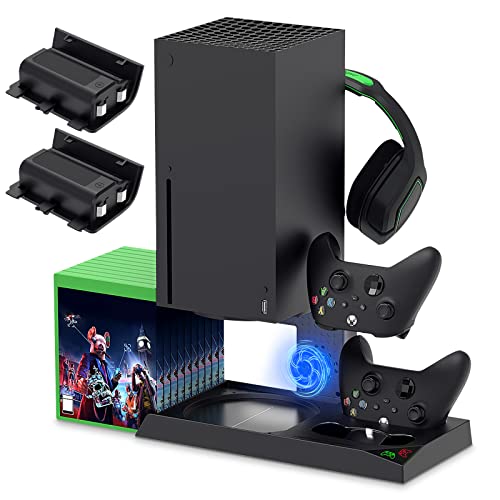
If you have an Xbox you need to get this cooling/charging stand for your console/controllers.
There is nothing worse than being ready for a long night of gaming only to realize your controllers are dead. With this stand that never has to happen again!
Downloading speed required by Xbox
Some of the requirements for online gaming consoles are similar for different devices. For Xbox, the download speed varies from other electronic gaming gadgets. The minimum requirements of internet speed for the Xbox are as follows:
- The minimum downloading speed required is 3 Mbps,
- The minimum uploading speed is about 500 Kbps equivalent to 0.5 Mbps
- The maximum ping rate allowed is about 150 milliseconds.
The difference between other online gaming consoles and the Xbox is the requirements for internet speed are clear and also easy to search or find. If you have had some issues with the internet connectivity on your Xbox, it can often be easily resolved by increasing the speed of your internet.
The requirements for internet speed are easily available and they also include a maximum rate of latency, which helps the players to play online smoothly without any interruption in their network connectivity.
Factors that affect the downloading speed of your network on the Xbox
The downloading and uploading speed are the foremost requirements that define the internet speeds needed. The higher the downloading and uploading speed is the faster your gaming process will be and the less likely you are to have issues playing online.
Some games require lower downloading and uploading speeds while some require higher downloading and uploading speeds. The requirements for internet speed differs as per the gaming systems and games being played. Different gaming devices like different models of the Xbox will have different internet requirements.
Several other network requirements could affect your gaming experience and they are as follows:
Latency and Ping rate
Latency, which is also referred to as ping rate is defined as the reaction time, i.e. the time from when a signal or a request is sent from one point on the internet to the other and when the request is accepted and the accepted signal is transferred back. The internet speed is the most important factor responsible to provide you with a smooth gaming experience.
Several service providers focus on providing you with enough network speed to handle any type of games. The interruption that is caused in the gameplay is due to high latency. The higher the latency, the higher the reaction time. Hence, the slower speed of the internet results in a worse gaming experience.
Live online games played on the Xbox require quick reaction time compared to other online gaming consoles, hence latency is the most important factor that affects the gaming in a larger context than other activities performed online.
Suppose you are playing a battle game on the Xbox and you want to attack your opponent, so you press the attack button. The gaming console is going to send the signal to the online server of the game telling the server that you want your player character to attack the opponent’s character. The greater your latency is, the longer time the signal will take to reach the gaming server and back. If you and your rival press the attack button concurrently, the signal with lower latency will have the advantage as the signal will reach the server before the other. Hence, the player with lower latency will be able to attack first and win the battle easier.
So, the factors that mostly affect the latency while playing the game on Xbox are the physical distance present between the servers and the location of internet connectivity and the number of traffic present on the specific network. Apart from the aforementioned factors, latency also affects the gaming experience of a player on Xbox.
Wi-Fi
For playing online games on Xbox, a hardwired internet connection using Ethernet cable works much better as compared to wireless connectivity. The wireless connections are more receptive to interference, which is often responsible for interrupted and slow gameplay.
The replacement of wired connections is Wi-Fi. If the hardwired connection is not possible in your home or apartment, a strong Wi-Fi signal can help you to get a better experience in gameplay. If you only have Wi-fi in your home, then you can increase the Wi-Fi signal by troubleshooting the network or upgrading to a better modem/router, which will help your games to run more smoothly.
Conclusion
Xbox is one of the most efficient and convenient gaming consoles that give you a better gaming experience as compared to many other gaming devices. Good network connectivity is the most important element for smooth gameplay when you are playing online. A faster network speed is not only necessary for faster uploading and downloading of gaming data, but the lower latency and a good Wi-Fi signal are also required for enhancing your gaming experience on the Xbox.
The recommendation mentioned above regarding the requirements of network speed is for a single player playing online at a time. If a single player is not playing, but multiple players are playing in your house using the same network simultaneously, then higher internet speeds are required to play with your Xbox without causing lag or other issues.
For this purpose, you need to have better internet connectivity with faster internet speeds following the above-mentioned information. The player should have a good internet connection with faster speed for getting a better and smooth experience in the online gaming world and to prevent the opponent from gaining an upper hand because of your slower speeds.